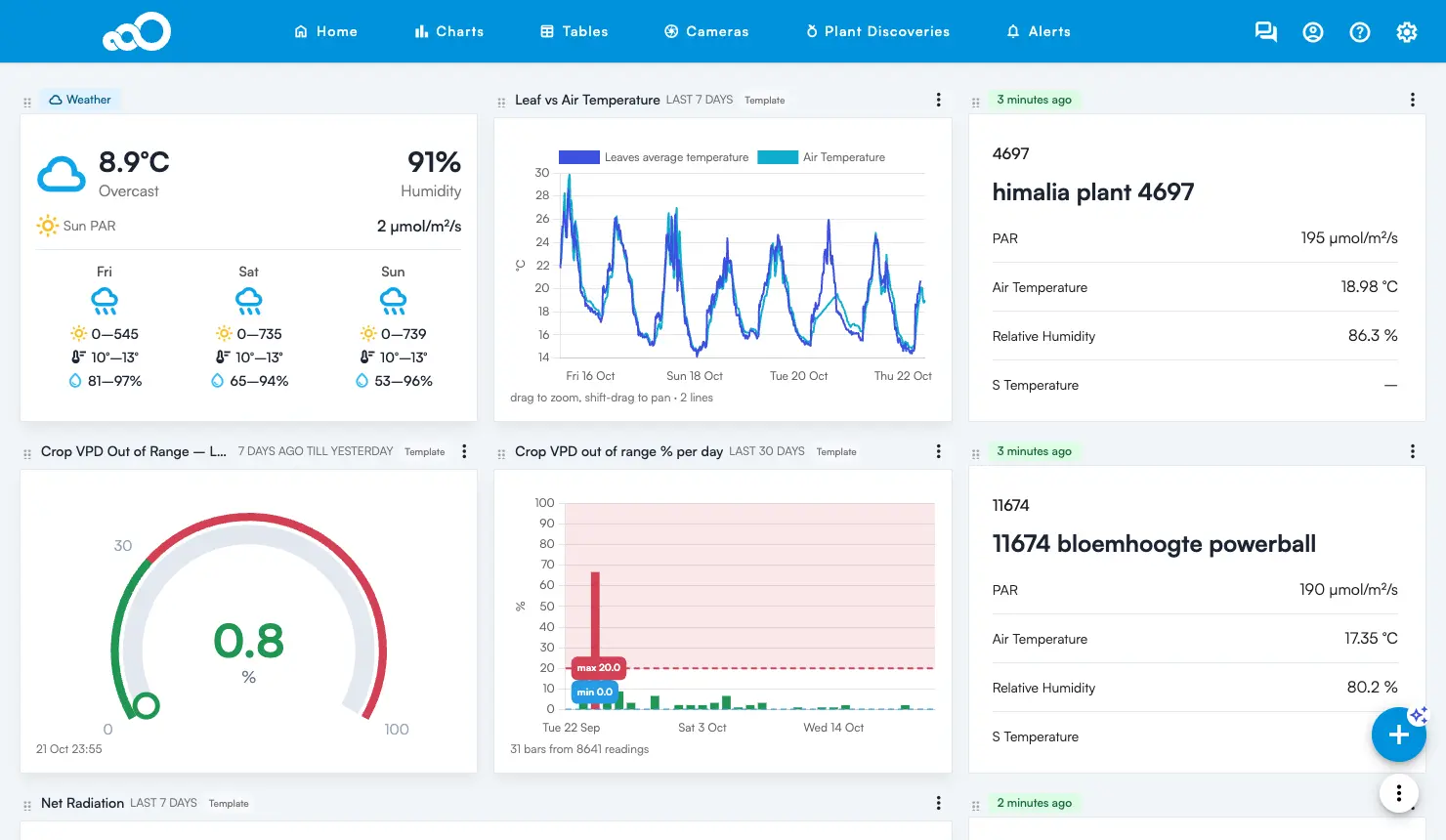
Sigrow web app version 3.13 is now available, with four new features, five improvements, and five bug fixes. The headline change: you can now build your own charts, cards and gauges on the Home page, by describing them in plain words or by picking a ready-made template.
New: widgets on the Home page
You can now put your own charts, cards and gauges on the Home page, next to your device cards. Describe the widget you want in plain words and the app builds it for you, or pick a ready-made one from the template library.
Where to find widgets
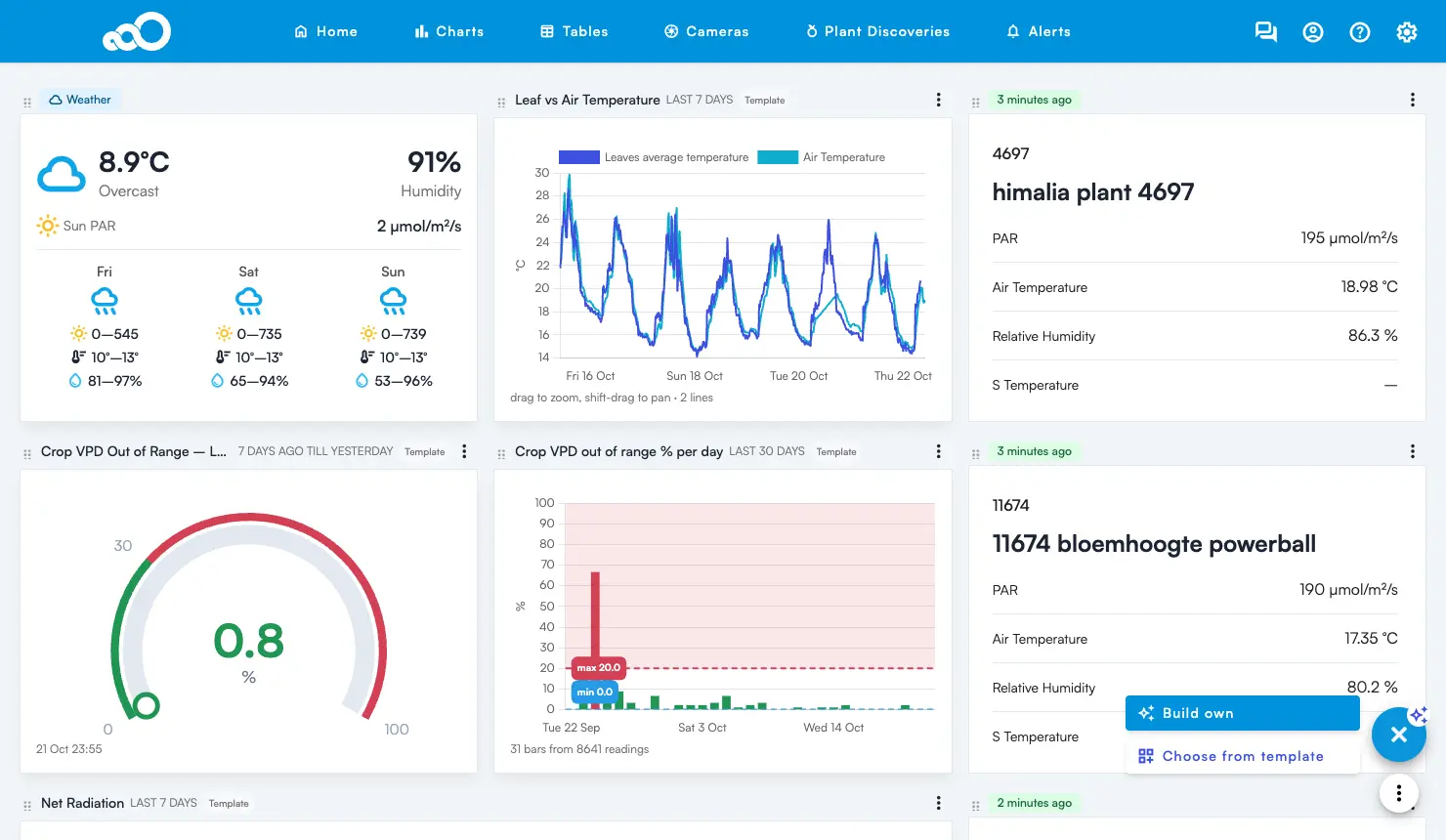
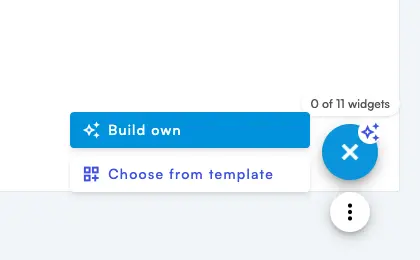
Use the + button at the bottom right of the Home page. Hover it to see the options:
- Build own: describe a widget and let the app build it.
- Choose from template: add a ready-made widget made by Sigrow.
- Upgrade pack: only shown when your location has used all its widgets.
Device cards and widgets sit in one grid. Drag any tile by the dotted handle at its top left to move it.
Build your own widget
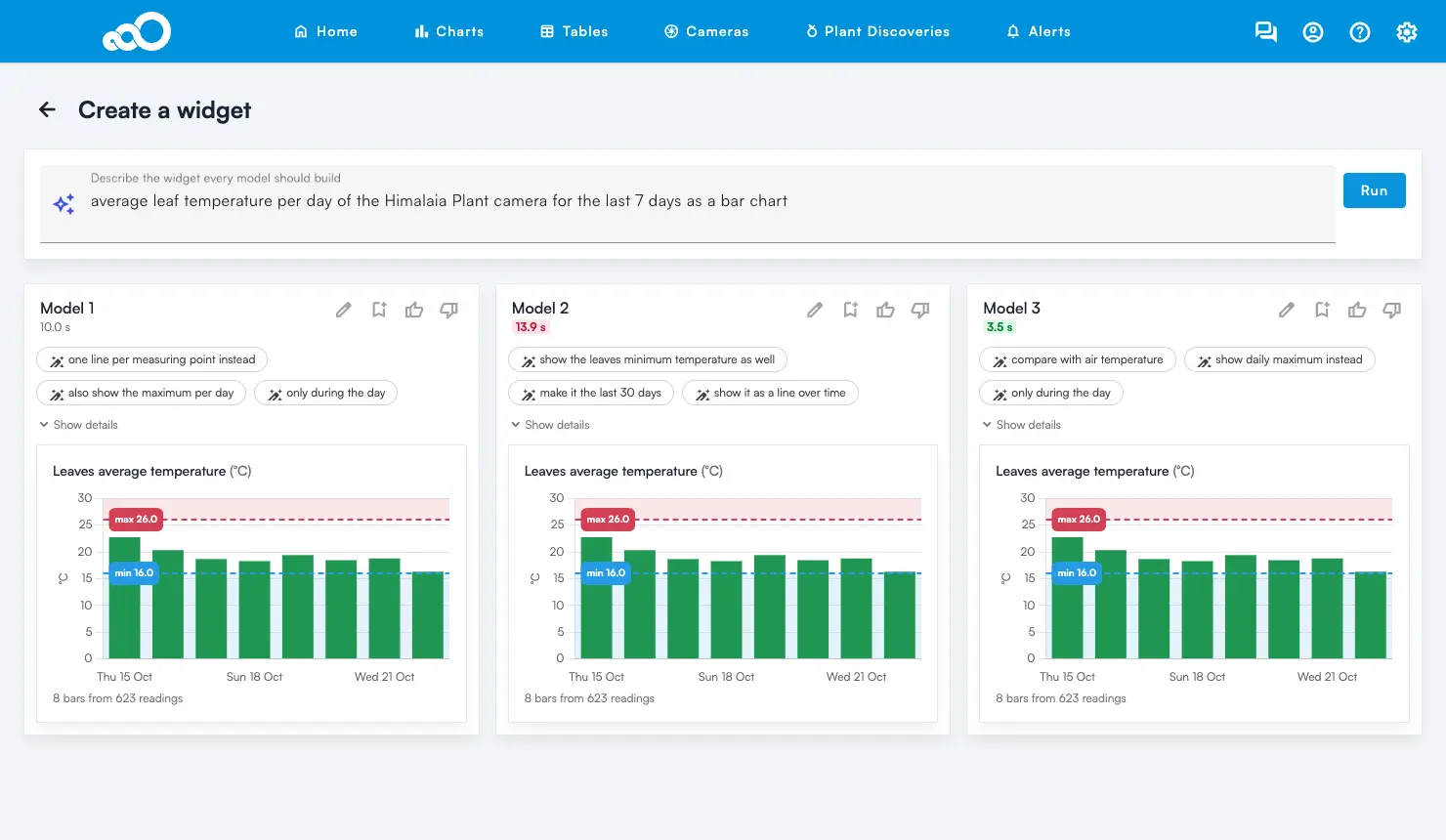
On the Create a widget page, write what you want to see and press Run. For example: “average leaf temperature per day of the plant camera for the last 7 days as a bar chart”. Three answers are shown side by side, so you can pick the one you like best.
- Bookmark (flag icon): save the widget to Home.
- Pencil: change it before saving.
- Suggestion buttons under the title (for example “last 30 days”): make that change in one click.
- Show details: see how the value is calculated.
Tip: name the device or sensor, the period and the chart type, for example “as a gauge”, “per day” or “last 30 days”. You can also ask for limits, for example “limits 18 and 24”.
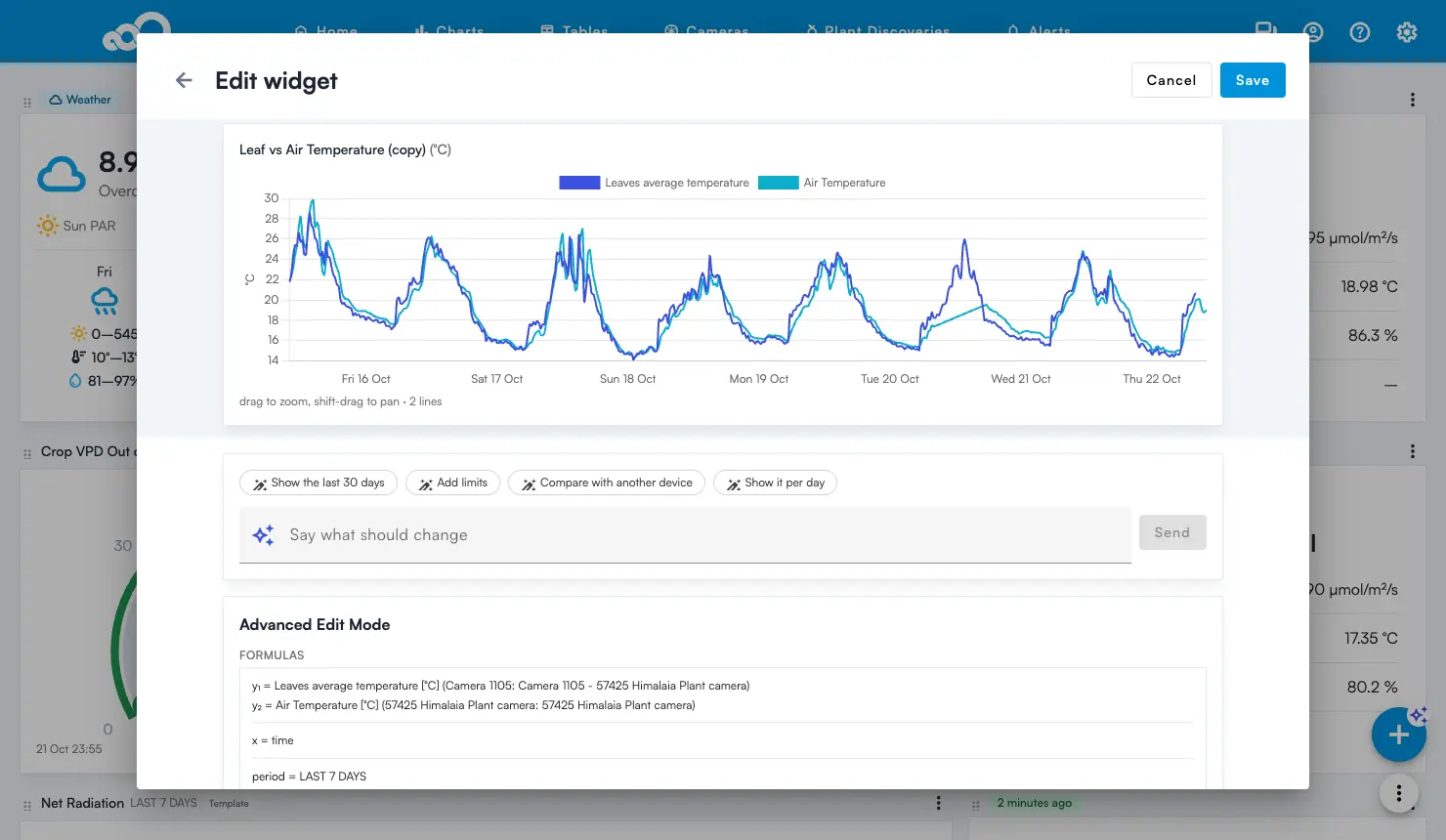
Change a widget: use the ⋮ menu on a widget to Edit or Delete it. Double click the title to rename it. In the editor you can describe the change in the chat box (“show it per day”), or open Advanced Edit Mode to change the chart type, period, devices and limits by hand. Nothing is saved until you press Save.
Template library
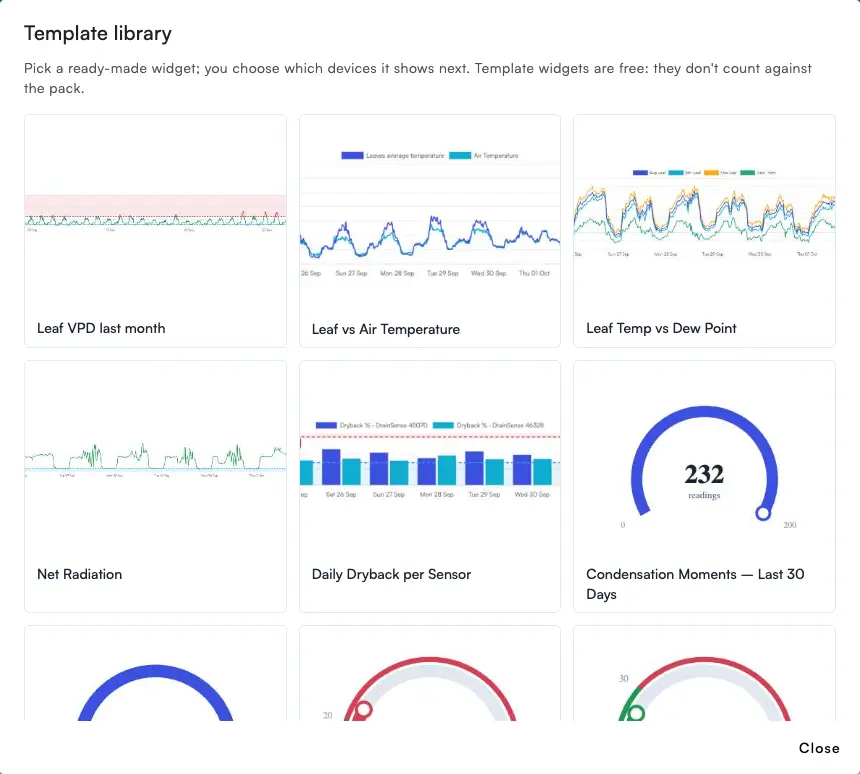
Choose from template opens ready-made widgets. When you pick one, the app only offers the devices of your location that measure what the template needs. A template that is already on your location shows as “Already used”.
Service packs
The number of widgets and AI prompts per week depends on the service pack of your location. Widgets belong to the location, so everyone with access to it sees and shares the same widgets.
| Pack | Widgets | AI prompts per week |
|---|---|---|
| A | 5 | 10 |
| B | 11 | 20 |
| C | Unlimited | Unlimited |
AI prompts reset every Monday. One prompt is one press of Run (for all three answers), one suggestion click or one chat message. Changing a widget by hand in Advanced Edit Mode never counts, and keeps working when the limit is reached. Your pack and its usage are shown in Settings under Location settings. If the Upgrade button is grey, contact support@sigrow.com.
New: sort devices on the Charts page
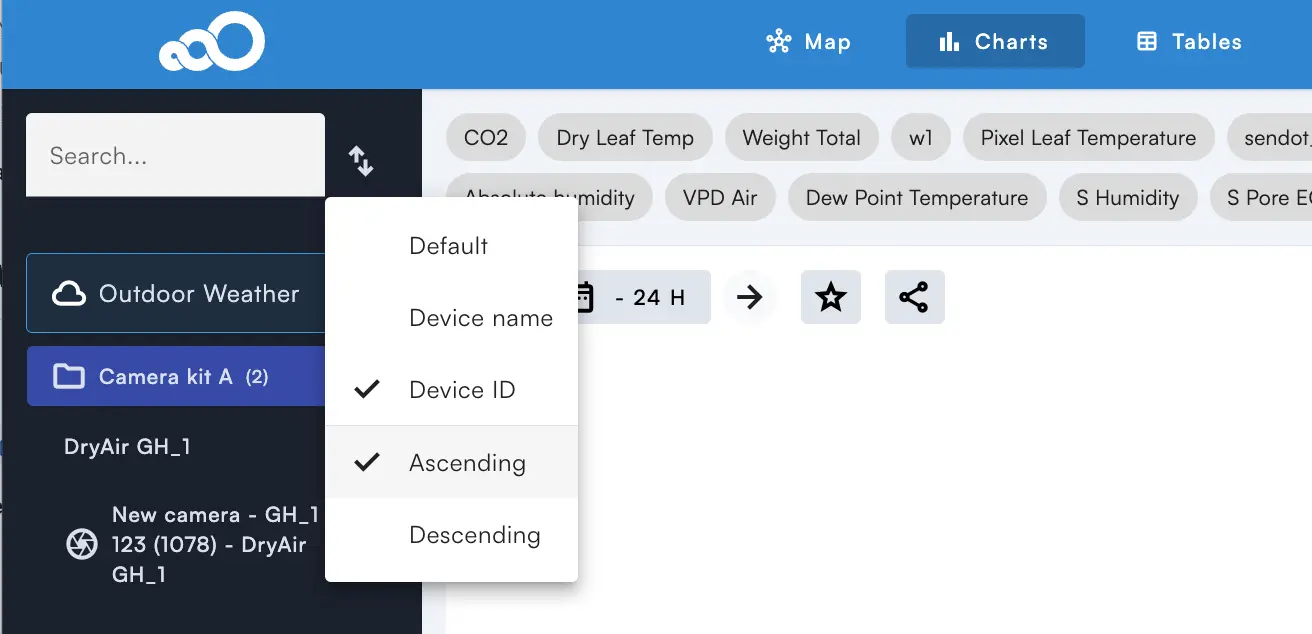
You can now sort the device list on the Charts page, so you find the devices you want to see quicker. Sort by device name or device ID, ascending or descending.
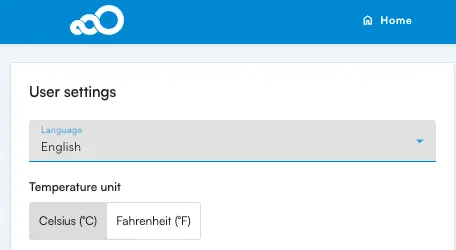
New: temperature in Fahrenheit
You can now show all temperatures in Fahrenheit. Set it on the Configuration page in the user section. The setting is per user and applies to all locations you have access to.
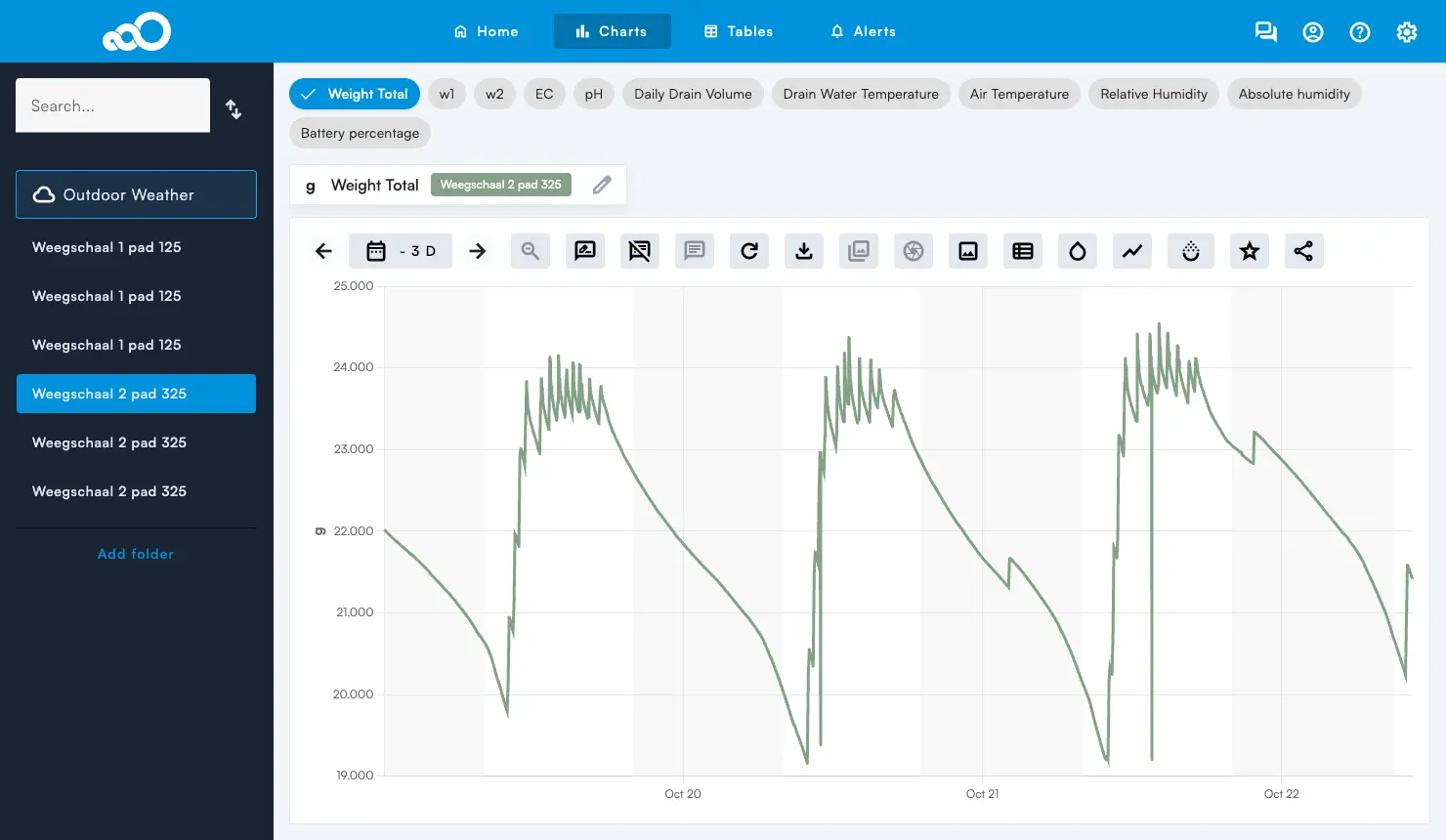
New: day and night shading for locations without PAR
The day and night shading on charts is based on the PAR readings of your devices. Locations without a PAR sensor, for example a location with only DrainSense, now get their day and night shading from the outdoor weather data. Locations with a PAR sensor keep using their own PAR readings.
Improvements
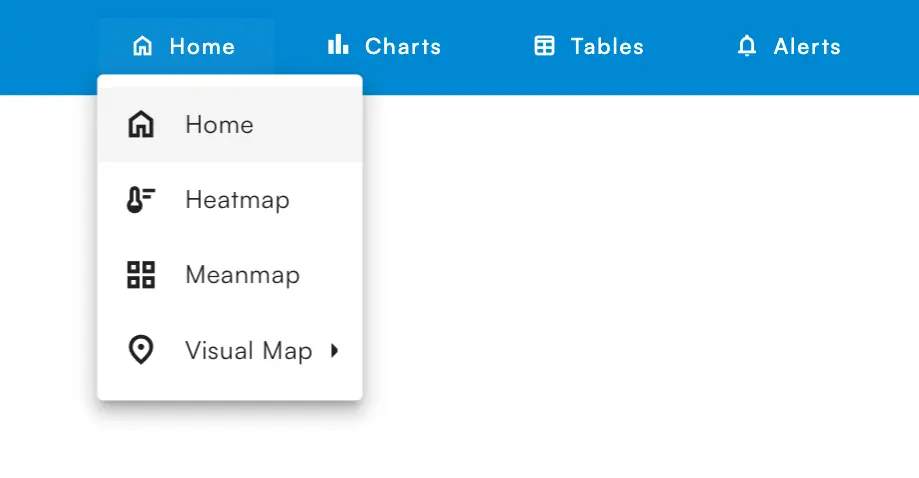
The Maps page is now called Home
The map options are now sub pages under Home, and Visual Map is the last item in the Home menu. The left sidebar is gone: Sort, Map columns count and Export data are now in the ⋮ menu under the + button.
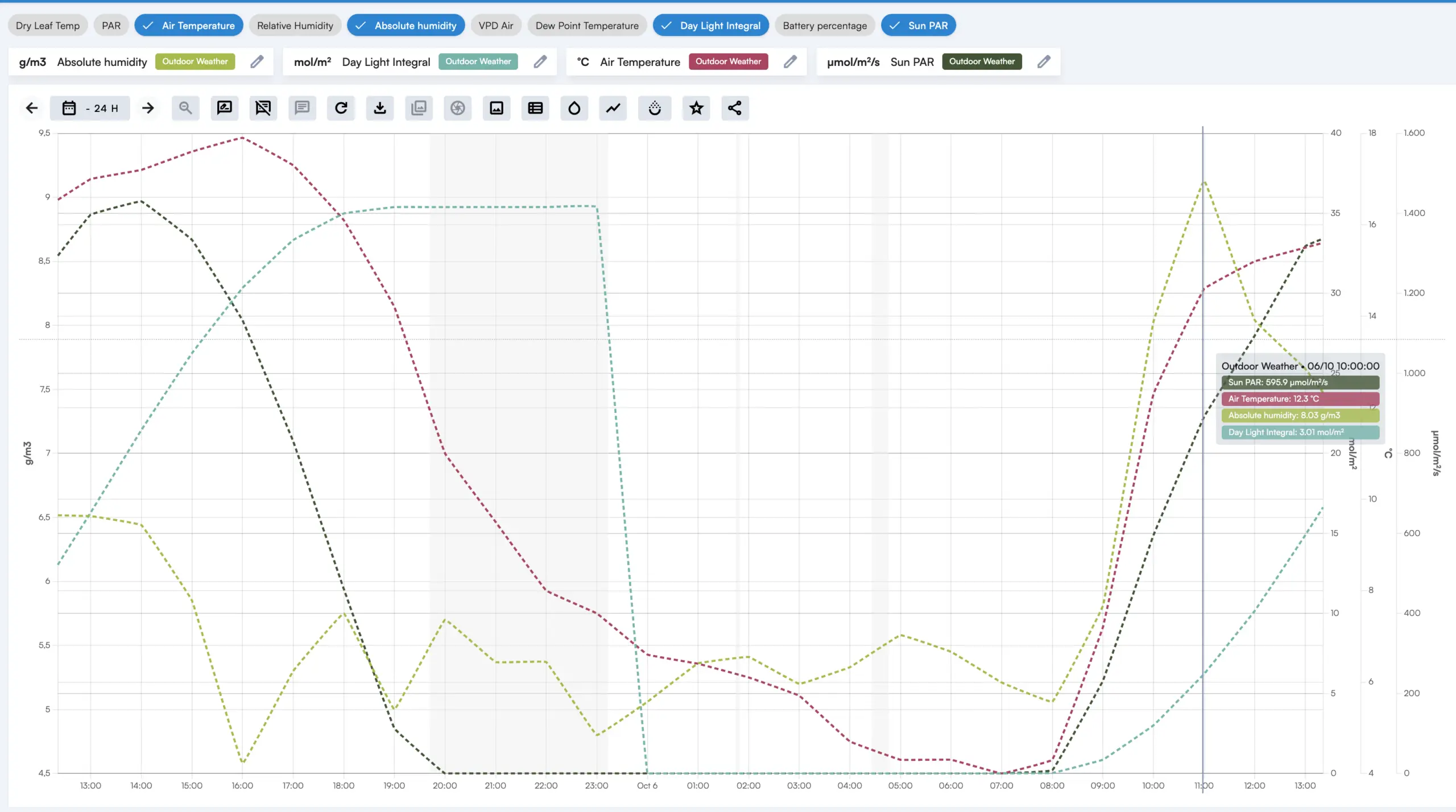
Absolute Humidity and DLI in the outdoor weather
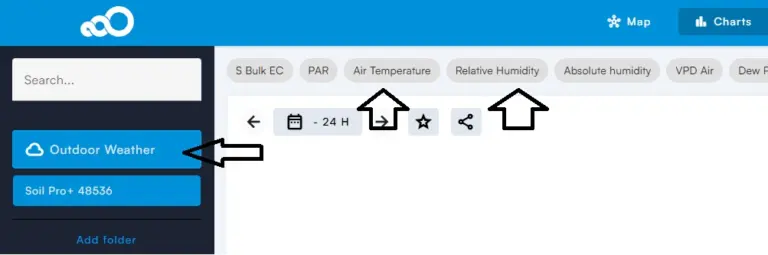
The outdoor weather data now also includes Absolute Humidity and DLI (daily light integral). Switch on “Outdoor weather” on the Charts page to compare them with your greenhouse data. Want to check what a light sum means for your crop? Our DLI calculator does the sums.
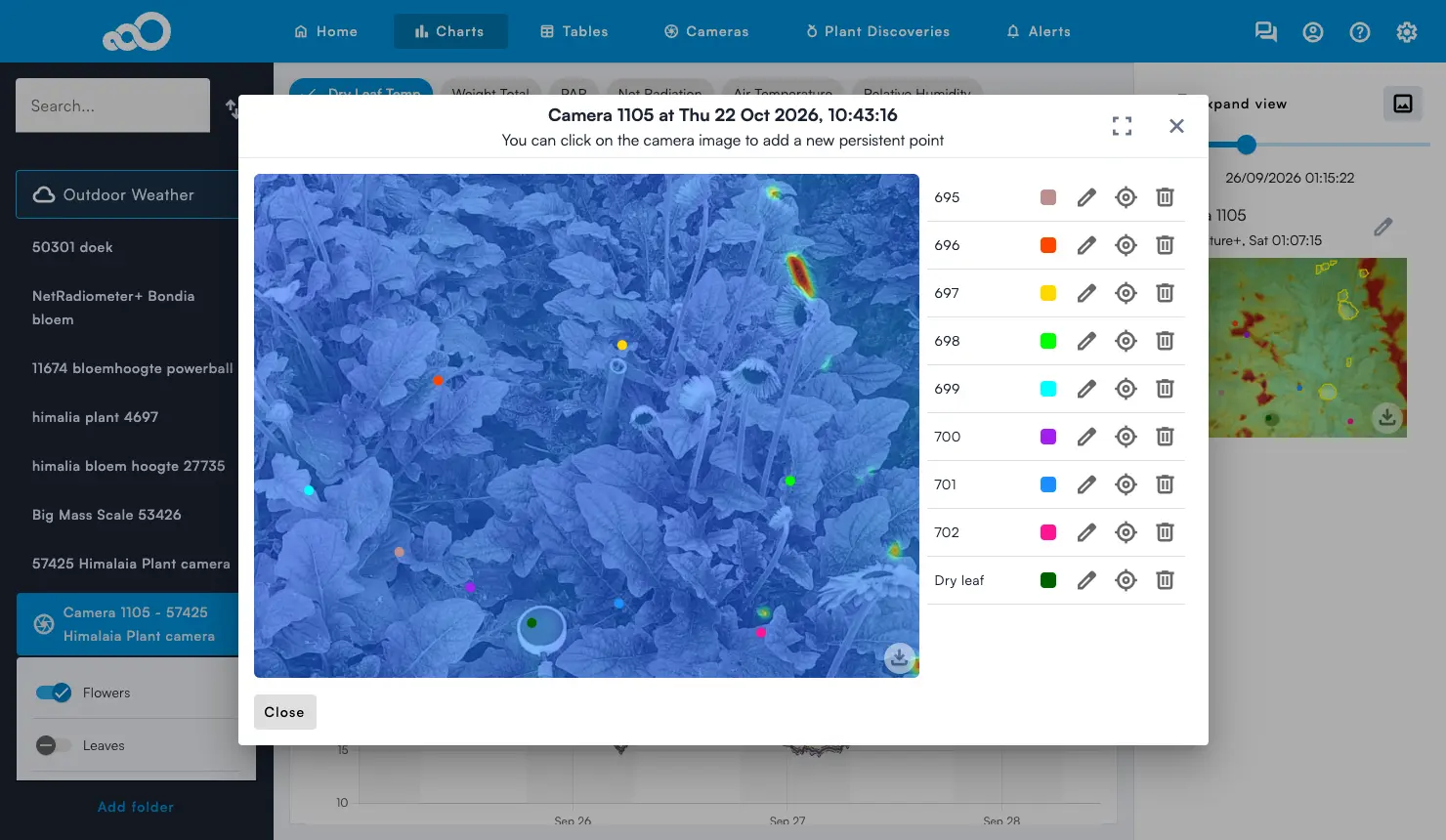
Camera point positions open on the latest image
A change to camera point positions only applies to new images. To make this clearer, the edit view now always opens the latest camera image and shows its date. So if you open the edit view while looking at camera data from two months ago, you now see the most recent image.
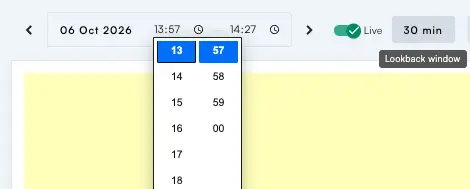
Meanmap remembers your variable and has a time window
- The variable you selected last is kept for your next visit, instead of going back to Air Temperature.
- You can now choose how far back data is included, for example 15 or 60 minutes.
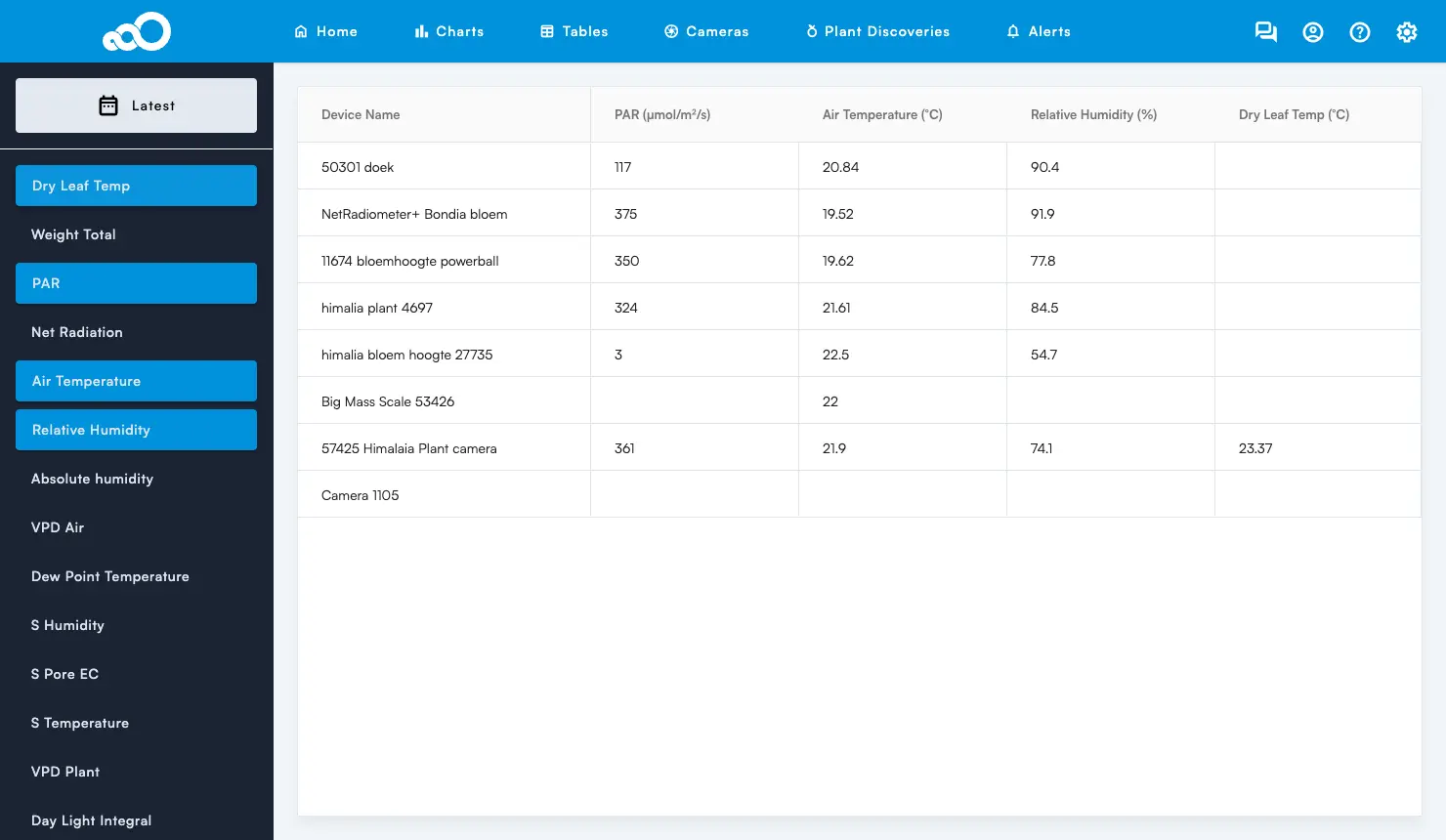
Tables > Latest shows the latest values
The Latest page under Tables now opens on the latest readings: pick the variables on the left and you see the most recent value of every device in one table.
Bug Fixes
- Camera Latest page: point names now appear on hover, as in the details view.
- Camera Latest page: camera images are shown sharper.
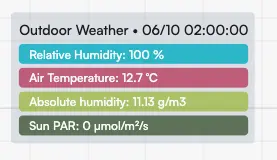
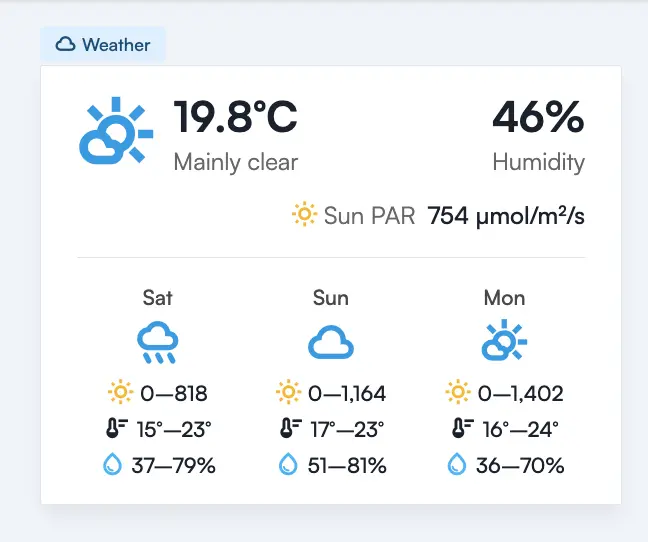
- Weather card on the Home page: Sun PAR, Temperature and Humidity are shown in a fixed order, with a temperature icon and the variable names on hover. “Radiation” is renamed “Sun PAR”.
- Translations: the Alert Settings, Alerts and Transpiration pages are now translated into Dutch and Spanish.
- Export data: fixed an error that stopped some exports from running.
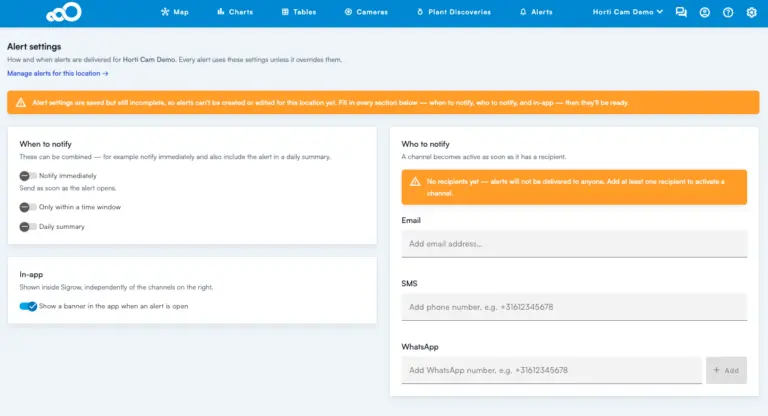
Coming from the previous release? Read the v3.12 update for the rebuilt alert system with email, SMS and WhatsApp delivery.
Questions or feedback? Reach our sales and customer success team at success@sigrow.com (Monday to Friday, 9:00 to 18:00 CET) or our technical support team at support@sigrow.com (Monday to Friday, 9:00 to 21:00 CET).
Author

Related Blogs

- Software Updates
By SigrowSigrow App Update v3.12
Sigrow web app v3.12 is now available, with two new features, four improvements,…- Software Updates
By SigrowSigrow App Update v3.11
Sigrow web app v3.11 is now available, with two new features, four improvements,…- Software Updates
By SigrowApp update 18 June 2026
The new Weekly Reports page brings a full week of greenhouse climate data…
No Related Blogs Found
120-Day Promise
Try Sigrow for 120 days, risk-free. If it does not get your operation under tighter control, send the system back for a full refund of the hardware and the software subscription paid to date — no restocking fee.
We’re here to support you.
Questions, assistance, or just want to chat – reach out!